
Descrizione
WebEquipe PDF Search indexes your PDF files and makes their text searchable. When visitors search your site, they see results from both your posts/pages and the content inside your PDFs. Search returns one result per PDF with an excerpt from the best-matching page.
Video
Watch the setup and usage guide:
Supported PDFs
- Works with: Standard, text-based PDFs (the kind you create or export from Word, Google Docs, etc.). File size default 50MB, configurable up to 500MB in PDF Search Settings.
- Mixed PDFs: If some pages have extractable text and others are image-only, indexing succeeds with a warning; search covers the text pages only.
- Does not work with: Scanned or image-only PDFs with no extractable text—they are marked Error with guidance to use a text-based PDF (run OCR elsewhere first). Password-protected PDFs cannot be indexed.
Keep Private PDFs Out of Search
Need to hide or protect certain PDFs? Use Exclude so a PDF is never indexed and never appears in search—even when you run “Re-index All PDFs” or bulk index. Excluded PDFs stay in your Media Library; they just won’t be searchable. Use Include later to allow indexing again. You can exclude or include PDFs from the Media Library or from PDF Search Manage PDFs.
How to Use
- Install and activate the plugin.
- Open PDF Search in the WordPress admin sidebar (Dashboard is the home screen).
- Click Re-index All PDFs on the Dashboard or PDF Search Index Activity to index existing PDFs (new uploads are indexed automatically when Enable PDF Indexing is on).
- Use your site’s search or add the shortcode
[webequipe_pdf_search_form]on a page—PDFs will appear in results when Enable Search Integration is enabled.
Use PDF Search Manage PDFs to scan the library, filter by status, and run bulk actions. Use PDF Search Index Activity to review indexing runs, export a CSV log, or start another full re-index.
Settings at a Glance
All options are under PDF Search Settings:
- General – Enable PDF indexing on upload, include PDFs in WordPress search, maximum file size (50MB default), search result excerpt length.
- Indexing options – Batch size (PDFs per re-index step), pages per batch (background page steps), page index threshold (when large PDFs switch to page-by-page indexing), max page content length (0 = unlimited; re-index after changing).
- Search display options – Show or hide PDF icon, file size, page count, last updated date, author, thumbnail preview, and summary/snippet text in search results.
- Advanced – Debug logging, memory limit, processing timeout, background processing, delete data on uninstall.
Full details and shortcode options: PDF Search Help.
What You Can Do
- Dashboard – Indexed PDF count, pages indexed, coverage, search health, recent activity, quick links, and Re-index All PDFs.
- Full-text search – Search inside PDF content by page; one result per PDF with the best-matching excerpt.
- Control each PDF – Index, unindex, exclude, or retry from the Media Library, Manage PDFs, or the attachment screen.
- Bulk actions – Index, unindex, include, or exclude multiple PDFs at once (Media Library or Manage PDFs).
- Index Activity – Filterable log of every indexing run, stats, and CSV export.
- Search display – Configure icons, meta, previews, and excerpts in settings.
- Shortcode – Add a PDF-only search form with
[webequipe_pdf_search_form](see PDF Search Help). - Background processing – Large PDFs above the page threshold are indexed page-by-page in the background to avoid timeouts.
Troubleshooting
PDFs not appearing in search
Ensure PDFs are indexed (Media Library “Search Indexed” column), Enable Search Integration is on, and the PDF is not excluded. Check PDF Search Manage PDFs for Error status and use Index Activity to see why a run failed.
Indexing fails or times out
In PDF Search Settings: enable Background Processing, review Pages Per Batch and Page Index Threshold for large files, and lower Batch Size if Re-index All PDFs stops early. Under Advanced, adjust Processing Timeout and ensure PHP memory_limit and max_execution_time are sufficient (see Help). Very large PDFs are processed in multiple page batches automatically when over the threshold.
Legacy index after upgrade
If you see a notice about migrating to per-page indexing, run Re-index All PDFs from the Dashboard or Index Activity page.
Other issues
See the FAQ above and PDF Search Help for full documentation.
Privacy
The plugin stores extracted PDF text and metadata in custom database tables (webequipe_pdf_search_files, webequipe_pdf_search_pages, and webequipe_pdf_search_activity, with a legacy webequipe_pdf_search_index table until you re-index). A compressed backup may also be stored in WordPress post meta for PDF attachments. If debug logging is enabled, recent log entries are stored in a WordPress option (not written directly to disk). The plugin does not collect or send visitor search data to external services. If your PDFs contain personal or sensitive information, that content is in the index—mention this in your privacy policy if required.
Third-Party Libraries
- smalot/pdfparser (LGPL-3.0) – PDF text extraction
- symfony/polyfill-mbstring (MIT) – multibyte string support
Credits
Developed by WebEquipe. Uses smalot/pdfparser for PDF text extraction.
Support
- Support: https://wordpress.org/support/plugin/webequipe-pdf-search
Screenshot
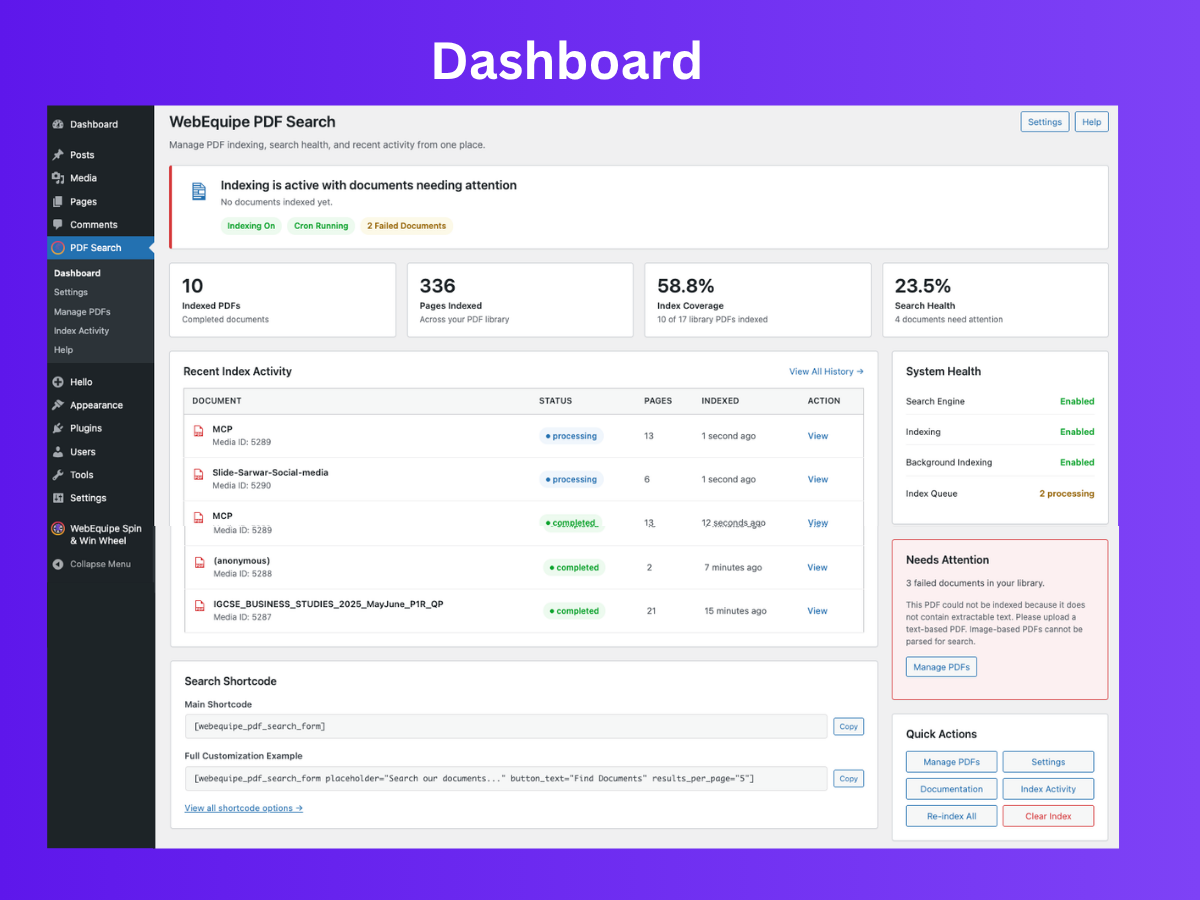
Dashboard – indexed PDF count, pages indexed, index coverage, recent activity log, system health, and quick-action buttons from one screen. 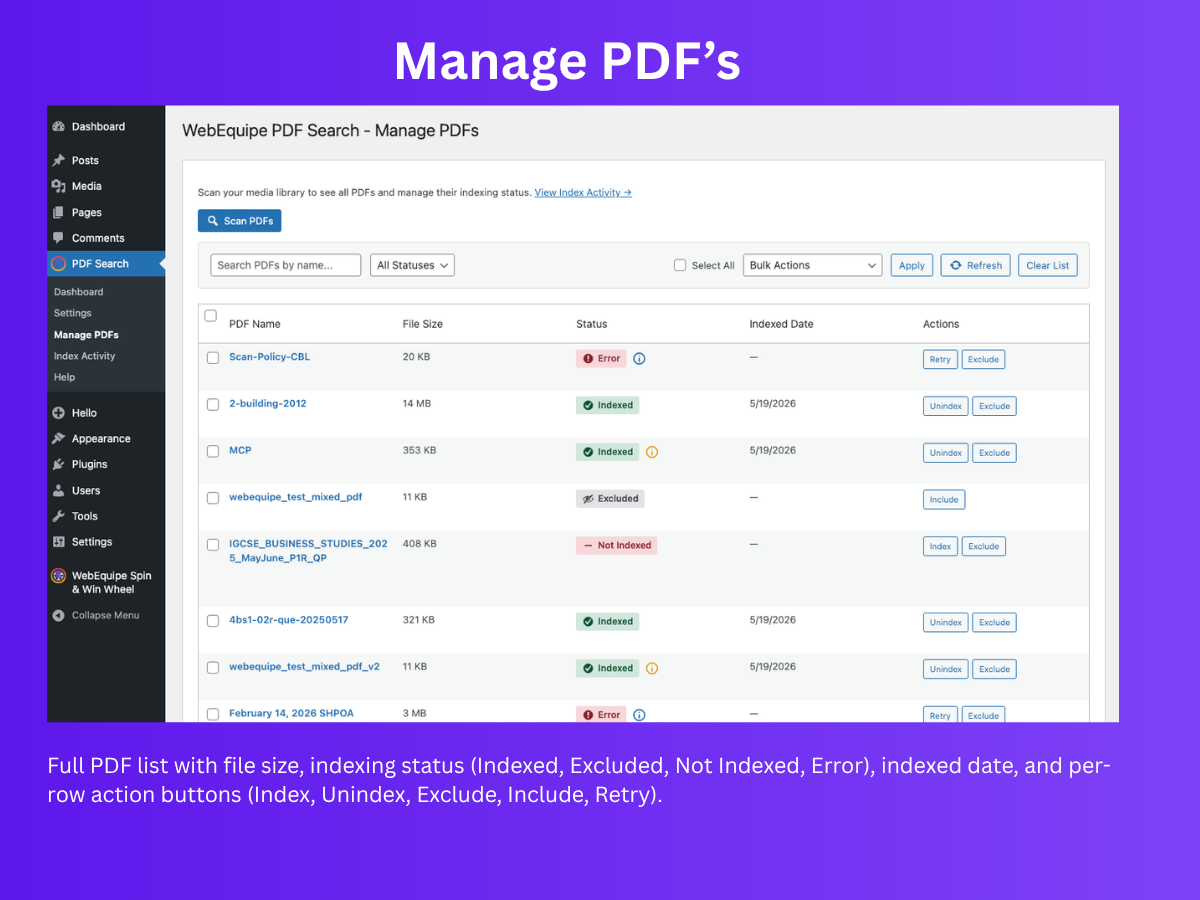
Manage PDFs – full PDF list with file size, status badges (Indexed, Excluded, Not Indexed, Error), indexed date, and per-row action buttons. 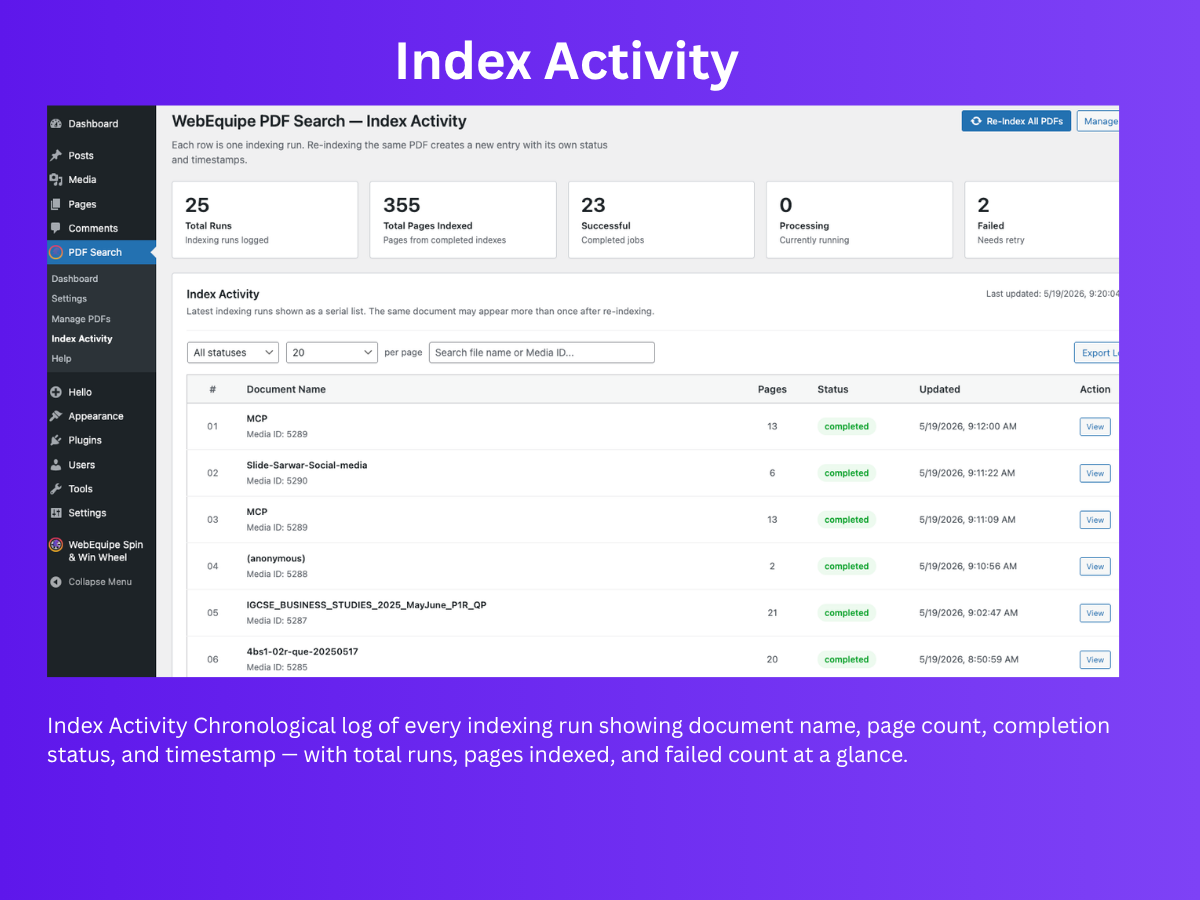
Index Activity – chronological log of every indexing run with document name, page count, status, and timestamp, plus total run stats at a glance. 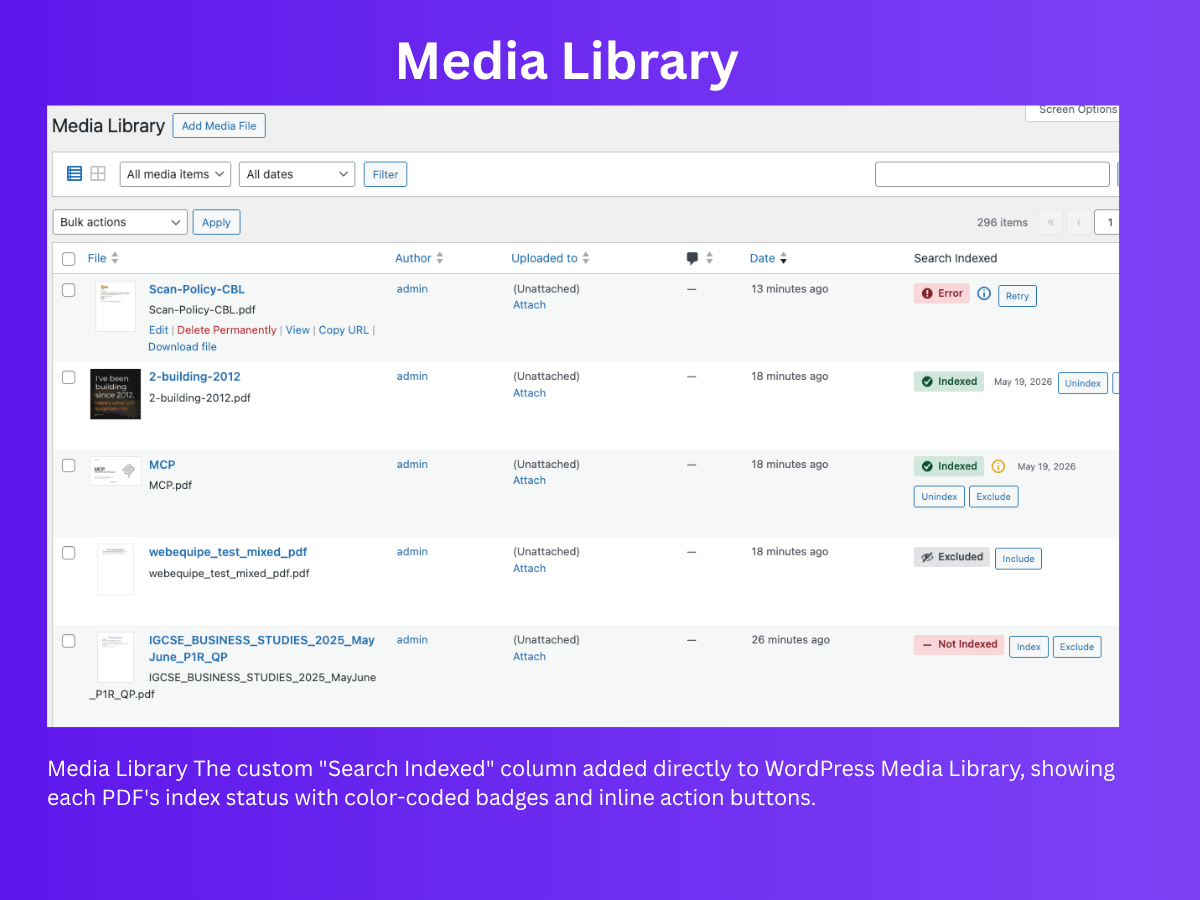
Media Library – custom “Search Indexed” column with color-coded status badges and inline action buttons added directly to the WordPress Media Library. 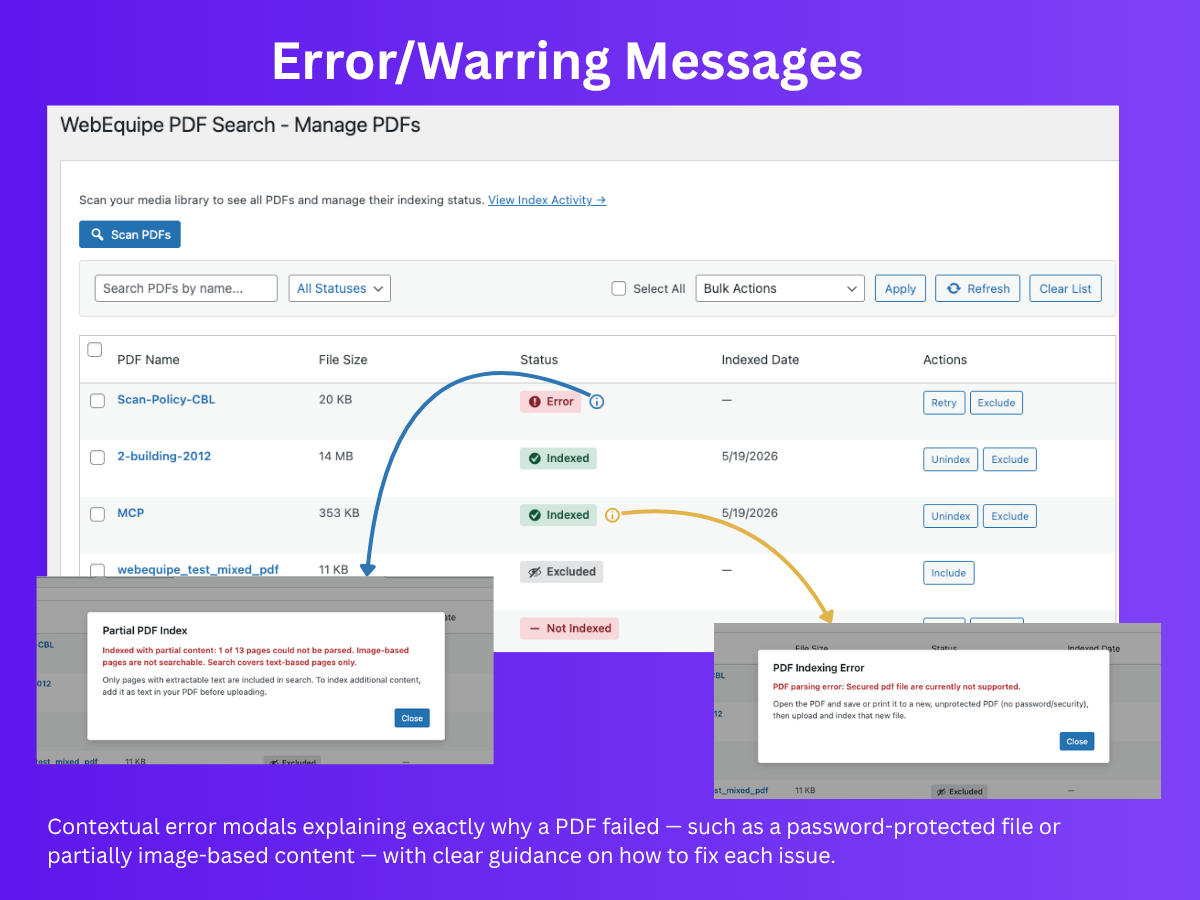
Error/Warning Messages – contextual error modals explaining why a PDF failed (password-protected, image-based, etc.) with clear fix guidance. 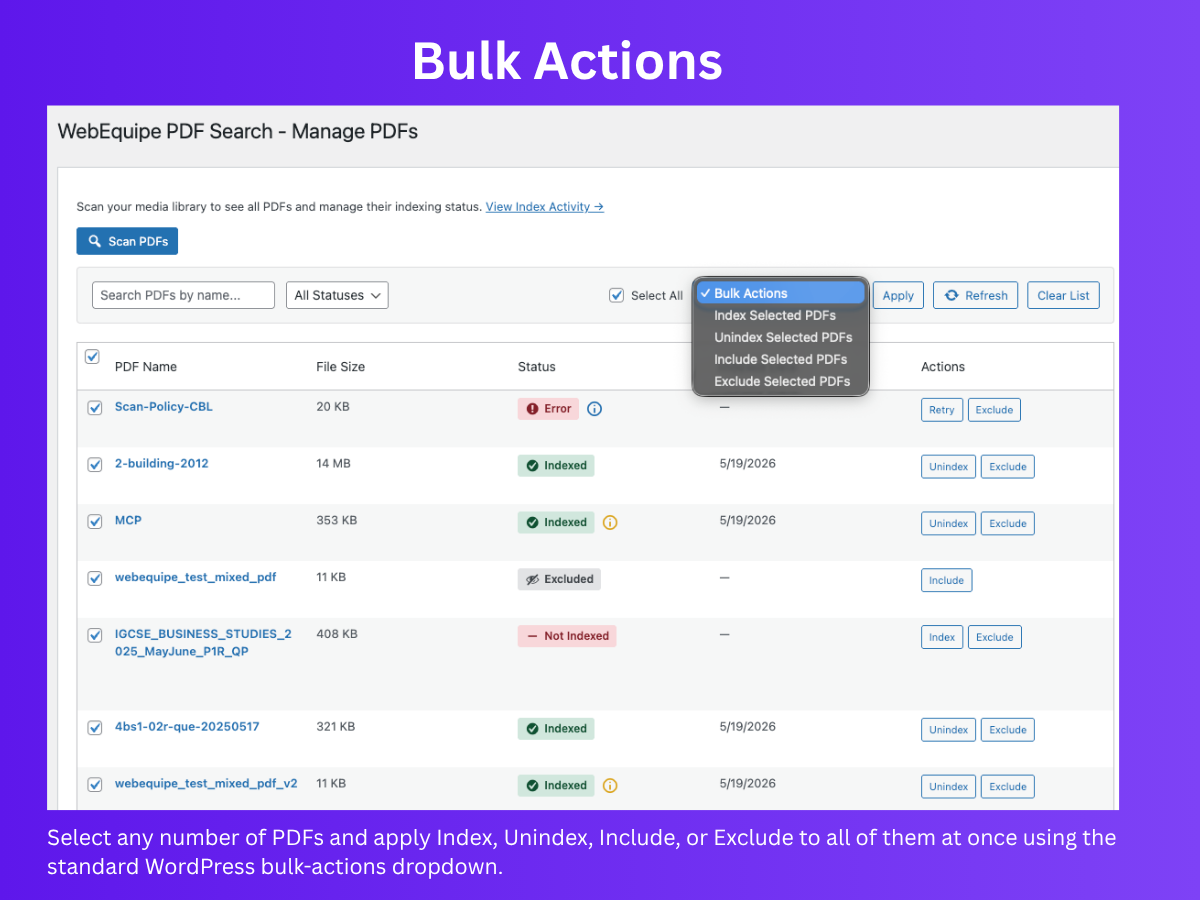
Bulk Actions – select multiple PDFs and apply Index, Unindex, Include, or Exclude to all at once using the standard WordPress bulk-actions dropdown. 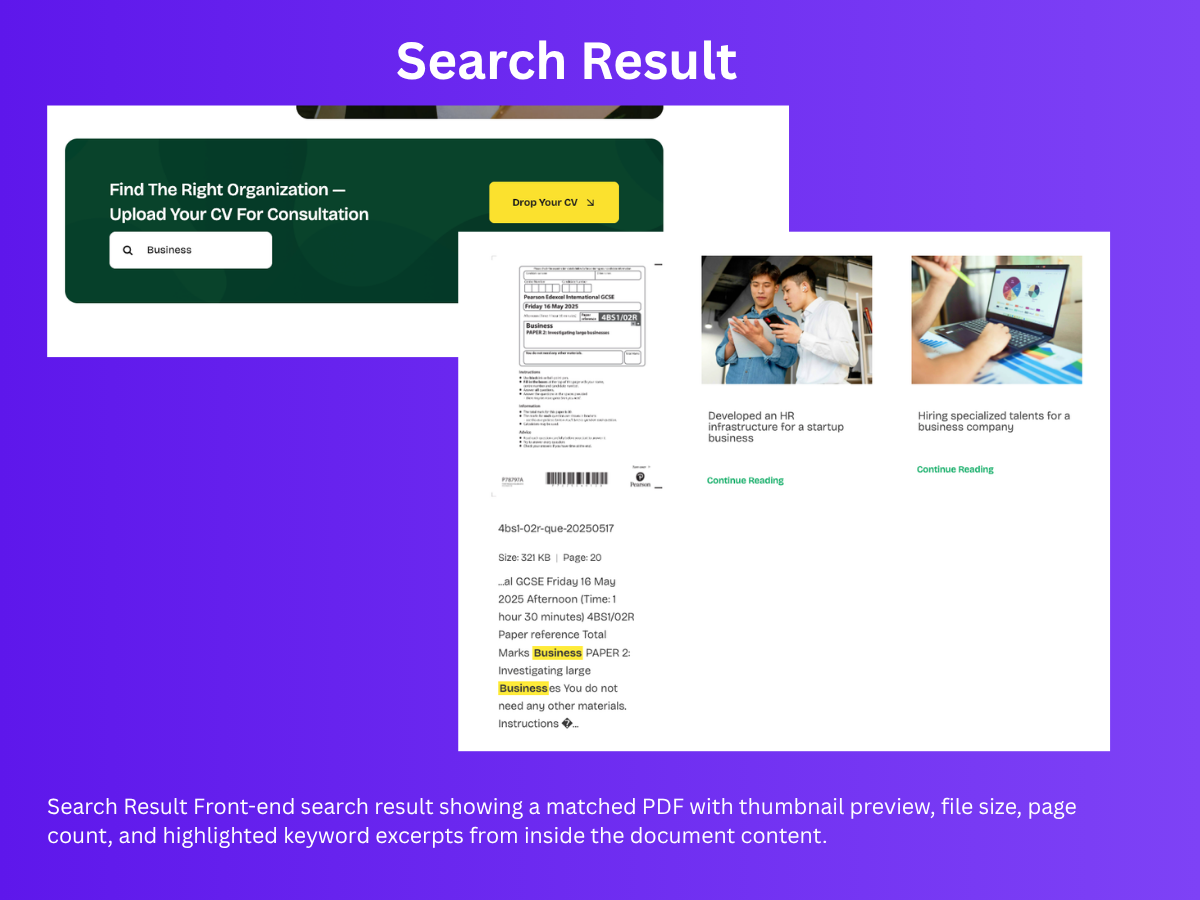
Search Result – front-end PDF result showing thumbnail preview, file size, page count, and highlighted keyword excerpts from inside the document content. 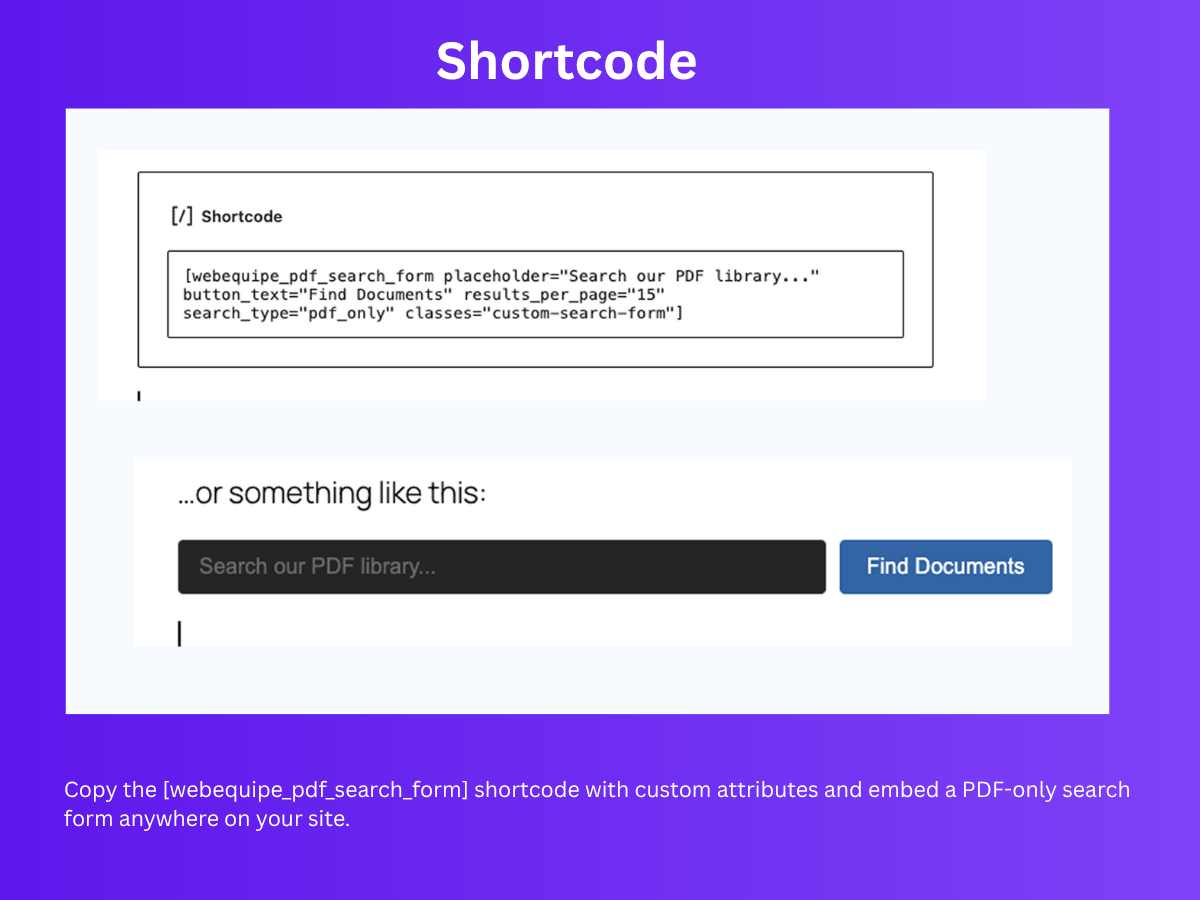
Shortcode – copy the [webequipe_pdf_search_form] shortcode with custom attributes and embed a PDF-only search form anywhere on your site.
Installazione
From WordPress Admin
- Go to Plugins Add New.
- Search for “WebEquipe PDF Search”, install, and activate.
Manual Install
- Download the plugin zip.
- Go to Plugins Add New Upload Plugin, upload the zip, then install and activate.
After Activation
- Open PDF Search Settings and review the options your site needs:
- Enable PDF Indexing – on if new uploads should index automatically (recommended).
- Enable Search Integration – on if PDFs should appear in your theme’s normal site search.
- Maximum File Size – raise only if you index PDFs larger than the default 50MB.
- Indexing options – adjust batch size or page-batch settings if you have very large PDFs or timeouts (defaults work for most sites).
- Search display options – choose what visitors see in PDF search results (icon, size, pages, author, preview, excerpt).
Click Save Changes when finished.
- Go to PDF Search Dashboard and click Re-index All PDFs to index PDFs already in your Media Library.
- Wait for indexing to finish (large libraries run in batches; check PDF Search Index Activity for progress and any errors).
- Test your site search or a page with
[webequipe_pdf_search_form]to confirm PDFs appear. - Optional: use PDF Search Manage PDFs to scan the library, exclude private files, or index individual PDFs; use Media Library for the same actions on each file.
- If you upgraded from 1.1.x or earlier, step 2 is required once so the per-page index replaces legacy data (an admin notice appears until you re-index).
- See PDF Search Help for full documentation and troubleshooting.
FAQ
-
What kind of PDFs are supported?
-
Standard, text-based PDFs (e.g. exported from Word or Google Docs). Default max size 50MB (up to 500MB in PDF Search Settings). Scanned or image-only PDFs with no extractable text are marked Error—use OCR first, then upload a text-based PDF. Password-protected PDFs cannot be indexed. Mixed PDFs (some text pages, some image-only) index with a warning; search uses the text pages only.
-
Why don’t my PDFs appear in search?
-
- Ensure they are indexed: in Media Library, check the “Search Indexed” column (green check = indexed; Error or Not Indexed need action).
- If not indexed, use Index on the PDF, bulk Index PDFs, or Re-index All PDFs from PDF Search Dashboard or Index Activity.
- Ensure Enable Search Integration is on in PDF Search Settings for normal site search. The shortcode works even when this is off.
- Confirm the PDF is not Excluded.
-
How do I hide or protect private PDFs from search?
-
Use Exclude on the PDF (Media Library or PDF Search Manage PDFs). Excluded PDFs are never indexed and never appear in search, even after Re-index All PDFs. Use Include, then Index, to allow indexing again.
-
What’s the difference between Unindex, Exclude, and Include?
-
- Unindex – Removes the PDF from search for now. You can index it again anytime (e.g. Index or Re-index All PDFs).
- Exclude – Keeps the PDF out of indexing until you clear it. Re-index All PDFs and bulk Index PDFs skip excluded PDFs. Use for private or sensitive files.
- Include – Clears the exclude flag so the PDF can be indexed again. You still need to run Index or Index PDFs after including.
-
How do I index or re-index many PDFs at once?
-
Media Library: Select the PDFs Bulk Actions “Index PDFs” (or “Unindex”/”Exclude”/”Include”) Apply.
Manage PDFs: Go to PDF Search Manage PDFs Scan PDFs select PDFs choose bulk action Apply. You can also filter by status (Indexed, Not Indexed, Excluded, Errors).
-
Does it work with scanned PDFs?
-
Only after OCR or conversion to a text-based PDF. Pure image-only/scanned files have no extractable text and are marked Error with guidance in the admin UI.
-
What’s the maximum PDF size?
-
Default is 50MB. You can raise it (up to 500MB) in PDF Search Settings Maximum File Size.
-
Will it slow down my site?
-
No. Indexing runs in the background (including page-by-page steps for large PDFs) and search reads the index. Visitors are not waiting for PDF parsing during search.
-
I upgraded from 1.1.x or earlier. Do I need to re-index?
-
Yes. Run Re-index All PDFs once after upgrading to 1.2.x so each PDF is stored in the per-page tables and search uses the new index. Until then, a notice may appear on PDF Search admin screens if legacy index data remains.
-
Password-protected PDFs?
-
They cannot be indexed because the plugin cannot read their content without the password.
-
Multisite?
-
Yes. Each site has its own index.
Recensioni

Contributi e sviluppo
“WebEquipe PDF Search” è un software open source. Le persone che hanno contribuito allo sviluppo di questo plugin sono indicate di seguito.
Collaboratori

Traduci “WebEquipe PDF Search” nella tua lingua.
Ti interessa lo sviluppo?
Esplora il codice segui il repository SVN, segui il log delle modifiche tramite RSS.
Changelog
1.2.1
- Readme and user-facing docs aligned with 1.2.x admin UI (PDF Search menu, Dashboard, Index Activity, per-page indexing, and current settings).
- Tested up to WordPress 7.0.
1.2.0
- Per-page indexing: file metadata and page content stored in separate tables; large PDFs indexed in background page batches.
- Settings: Max Page Content Length (0 = unlimited per page), Pages Per Batch, Page Index Threshold.
- Search: FULLTEXT/LIKE on page content; one result per PDF with excerpt from the best-matching page.
- Legacy index kept until re-index; run Re-index All PDFs to migrate existing PDFs.
- Index Activity admin page with stats, filterable activity log (one row per indexing run), CSV export, and Re-Index All PDFs.
- Redesigned Dashboard with status banner, metrics, recent activity, shortcodes, and system health sidebar.
- Dismissible Pro launch banner on PDF Search admin pages (early access CTA; not shown after dismiss).
- Image-only PDFs marked Error; mixed PDFs indexed with admin warning.
1.1.1
- Admin safety fix: when new Dashboard/Manage view files are missing in partial installs, plugin now falls back to Settings page instead of showing PHP include warnings.
1.1.0
- Admin UI: moved to top-level PDF Search menu with dedicated Dashboard, Settings, Manage PDFs, and Help pages.
- Branding/UX: consistent page headings and improved Settings page card layout.
- Logging: debug entries are stored via WordPress option/hooks only (no direct filesystem writes), improving compatibility on FTP/SSH filesystem hosts.
1.0.2
- Indexing and debug log: avoid WordPress filesystem/FTP on direct file reads (fewer crashes on bulk re-index with Debug Logging on).
- Processing Timeout now applies per PDF during indexing (typical 30s PHP limit workaround).
- Help: short note on Processing Timeout and host limits.
1.0.1
- Block theme and theme compatibility: PDF meta shows in block themes (e.g. Twenty Twenty-Four/Five) and themes without excerpt block; no duplicate preview or double meta (Astra/Elementor).
- Theme-agnostic CSS: only
webequipe-pdf-*classes; improved preview/meta sizing and alignment. - “Show Author” setting to show uploader name in result meta; Avada compatibility for PDF excerpts.
- Help page and PHPCS/compliance updates.
1.0.0
- Initial release
- Automatic PDF indexing on upload (optional)
- Full-text search in WordPress search and via shortcode
- Settings page: indexing, display options, shortcode, PDF list
- Media Library: index status and per-PDF actions (Index, Unindex, Exclude)
- Bulk actions: Index, Unindex, Include, Exclude
- Exclusion system to keep private or sensitive PDFs out of search
- Background processing for large PDFs
- Template tags and Help documentation
- WordPress Multisite support