

Descrizione
BinsOptimizer is the fastest, most private way to optimize images in WordPress. Unlike cloud-based image optimizers, BinsOptimizer converts and compresses your images directly in the browser — before they ever hit your server. No API keys, no monthly fees, no privacy risks.
Every JPEG and PNG you upload is automatically converted to WebP — the modern image format recommended by Google — and resized to your chosen maximum dimension. The result is smaller file sizes, faster page loads, and better Core Web Vitals scores, all without touching your server resources.
Why choose BinsOptimizer over other image optimizer plugins?
Most WordPress image optimization plugins send your images to external cloud servers for processing, which is slow, costs money, and raises data privacy concerns. BinsOptimizer does everything on the user’s own machine using modern browser APIs, making it instant, free, and completely private.
Video Tutorial
Key Features
- Automatic WebP Conversion: Convert JPEG, PNG, and SVGs (if you allow) images to WebP on upload for up to 80% smaller file sizes and better Google PageSpeed scores.
- Client-Side Image Compression: All image processing happens in the browser — zero server load, zero cloud costs.
- Smart Image Resizing: Automatically downscale oversized images to your chosen maximum width or height during upload.
- No API Key Required: Fully self-contained. No third-party services, no subscriptions, no limits.
- 100% Private: Your images are never sent to an external server. Everything stays on your machine until the optimized file is uploaded.
- Zero Queue, Instant Results: Optimization happens in real time as you upload — no background jobs or waiting.
- Media Library Integration: View compression savings, original vs. optimized file sizes, and conversion time directly in the WordPress Media Library.
- Works Everywhere in WordPress: Compatible with the Block Editor (Gutenberg), Classic Editor, drag-and-drop uploads, and featured image pickers.
- SVGs Upload: Allow to upload SVGs file securely and if you want you can optimize and convert them on upload.
- Bulk Optimize Your Existing Library: Convert images you uploaded before installing the plugin, one batch at a time, straight from your browser.
- Links Updated Automatically: Optimizing a published image changes its URL. BinsOptimizer rewrites those URLs across your posts, page-builder content, widgets and theme options, so pages already using the image keep working.
- Restorable Originals: Keep a copy of every original before it is replaced, and undo a whole bulk run with one click if you change your mind.
- WebP Delivery Check: Confirms your server actually serves
.webpfiles before a bulk run starts — some security plugins and host firewalls block them, which would otherwise leave your optimized images unreachable.
Screenshot
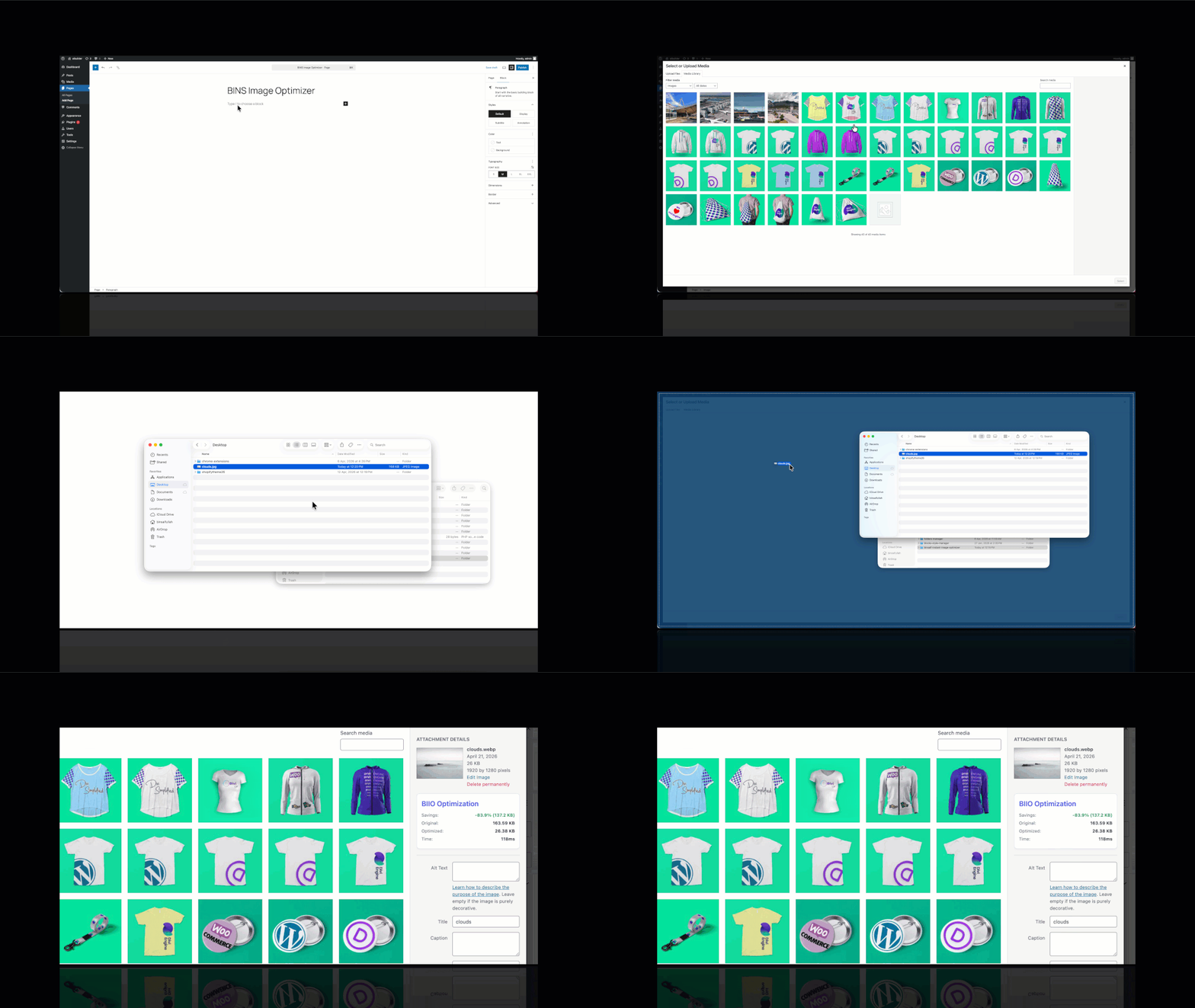
Blocchi
Questo plugin fornisce 1 blocco.
- BIIO Admin
Installazione
- Upload the plugin files to the
/wp-content/plugins/binsaif-instant-image-optimizerdirectory, or install the plugin through the WordPress plugins screen directly. - Activate the plugin through the ‘Plugins’ screen in WordPress.
- Navigate to Settings > BinsOptimizer to configure your compression levels and constraints.
- Start uploading images to your Media Library or Posts – they will be optimized automatically!
FAQ
-
Does this require an API key?
-
No. Since all optimization happens in your browser, there are no external services to connect to and no API keys required.
-
Does it optimize existing images?
-
Yes. Use Settings > BinsOptimizer > Bulk Optimize to convert images that were already in your Media Library, or the “Optimize It” button on any single image. Conversion still happens in your browser, so keep the tab open while a run is going.
-
Will optimizing break images already used on my site?
-
No. Converting a published image changes its URL, so BinsOptimizer rewrites those URLs everywhere they appear — post content, page-builder data (including Elementor), widgets and theme options — as part of the run.
-
My images return “403 Forbidden” after optimizing. What happened?
-
Some security plugins and host firewalls only allow a fixed list of file extensions inside
wp-content/uploads, and.webpis often missing from it. Every optimized image then returns 403 no matter what this plugin does. Open Compression > Existing images and press Run check — it will tell you straight away whether your server is serving WebP. If it is blocked, whitelist the.webpextension in your security plugin, then run the check again. -
Can I undo a bulk optimization?
-
Yes, as long as Compression > Existing images is set to “Keep a restorable copy” (the default). Originals are stored in
wp-content/uploads/biio-originals/, and the Bulk Optimize screen gets an “Undo optimization” card that puts them back and points your content at them again. Choosing “Delete the original” saves disk space but cannot be undone. -
Is it compatible with other media plugins?
-
Yes, it works by intercepting the upload process at the browser level, making it compatible with most WordPress themes and plugins that use the standard WordPress media uploader.
Recensioni
Non ci sono recensioni per questo plugin.
Contributi e sviluppo
“BinsOptimizer – Instant Image Optimizer, Compression & WebP Converter” è un software open source. Le persone che hanno contribuito allo sviluppo di questo plugin sono indicate di seguito.
Collaboratori
Traduci “BinsOptimizer – Instant Image Optimizer, Compression & WebP Converter” nella tua lingua.
Ti interessa lo sviluppo?
Esplora il codice segui il repository SVN, segui il log delle modifiche tramite RSS.
Changelog
1.6.1
- Fixed: optimizing an existing image changed its URL but left published references pointing at the deleted original, so images already used on the site stopped loading (often reported as a 403 from a security plugin). Those URLs are now rewritten automatically across posts, page-builder data, widgets and theme options — including Elementor’s escaped-slash JSON and serialized values
- New: “Existing images” setting under Compression — choose whether originals are kept as a restorable copy (default) or deleted to save disk space
- New: “Undo optimization” on the Bulk Optimize screen restores originals and points your content back at them
- New: WebP delivery check. Bulk Optimize refuses to start when the server will not serve
.webpfrom the uploads folder, which is what makes optimized images return 403 Forbidden - Failures during optimization now report the server’s actual reason instead of a generic message
1.6.0
- Admin dashboard is rdesigned with a completely new look for better UX
1.5.0
- New: Bulk Optimize screen — a dedicated dashboard tab that converts your existing JPEG/PNG (and SVG, when enabled) library to WebP, entirely in your browser. Includes progress bar, batch size, pause/resume/cancel, a per-image result log, and a “skip already optimized” toggle.
- New: Optimization Scope setting — choose whether optimizing converts the full-size image only, or the full-size image plus all generated thumbnail sizes (default). Applies to both the Bulk Optimize screen and the per-image “Optimize It” button, so front-end delivery is genuinely optimized.
- New: Grid-view optimization badge — the Media Library grid (and the insert-media modal) now shows a savings badge on each optimized thumbnail, not just the list view.
- New: Per-upload notice — a dismissible summary (“Optimized 3 images — saved 1.2 MB.”) appears after each upload batch and auto-dismisses after 8 seconds.
- New:
biio_convert_fileJavaScript event — developers can callevent.preventDefault()in a listener to skip optimization for specific files and upload the original untouched. - Improvement: JavaScript-rendered strings are now translatable via
@wordpress/i18n, with translations loaded throughwp_set_script_translations(). - Improvement: When converting thumbnails, WordPress regenerates WebP sub-sizes from the new file; if the server cannot encode WebP thumbnails, it safely falls back to converting the full-size image only.
1.4.4
- New: Format-specific quality sliders — set separate WebP output quality for JPEG, PNG, and SVG source files instead of a single blunt quality setting.
- Improvement: SVG quality slider appears only when SVG optimization is enabled, keeping the UI clean.
- Improvement: Compression Playground now respects per-format quality settings when previewing conversions.
1.4.3
- New: WordPress Thumbnail Generation control — a master toggle lets you disable all intermediate image sizes on upload to save disk space.
- New: Per-size toggles — selectively disable individual image sizes (thumbnail, medium, medium_large, large, 1536×1536, 2048×2048) while keeping the rest active.
- Improvement: File Size media column is now sortable.
1.4.2
- Added: Reset Default settings button is added
- Checked: compatibility with WordPress 7.0
1.4.1
- Redesign: Premium administrative settings and dashboard redesign with elegant glassmorphic statistics widgets, modern sidebar navigation layout, responsive diagnostics, and widescreen compatibility.
- New: Dynamic real-time calculation of direct space savings, optimized image count, efficiency ratios, and conversion speed directly from your database.
- New: High-fidelity, local browser-based drag-and-drop Image Optimizer Sandbox Playground for real-time before/after side-by-side compression previews.
- Improvement: Beautifully redesigned settings save buttons with animated feedback, state indicators, and sticky tab footers.
- Improvement: Expanded responsive widescreen dashboard layouts to full-width alignment (max-width: 100%).
1.4.0
- New: “Optimize It” button in the Media Library list view — click to optimize any existing JPEG, PNG, or SVG attachment on demand without re-uploading.
- New: File Size column in the Media Library — shows the current on-disk size of every attachment. Can be toggled off in Settings.
- Improvement: Media Library column CSS moved to a dedicated stylesheet (
assets/css/media.css) and properly enqueued, keeping PHP templates clean. - Fix: “Show Filesize Column” toggle was placed outside the settings form and never saved correctly — now included in the form submission.
1.3.0
- New: Secure SVG upload support — administrators can now enable SVG uploads for specific user roles via Settings > BinsOptimizer.
- New: Role-based SVG upload permission — choose exactly which user roles (Administrator, Editor, Author, etc.) are allowed to upload SVG files.
- New: Server-side SVG sanitization — every SVG is cleaned with a DOMDocument-based sanitizer before it is stored. Strips
<script>tags,<foreignObject>, event-handler attributes (on*), dangeroushref/xlink:hrefURI schemes (javascript:,vbscript:,data:application/), and unsafe CSS constructs before saving. - New: SVG media library compatibility — SVG attachments now display correctly in the Media Library grid and modal, report accurate intrinsic dimensions, and render properly in the Block Editor image block.
- New: SVG frontend display —
wp_get_attachment_image()and responsive image helpers work correctly for SVG attachments; srcset generation is disabled for SVGs (vector format needs no size variants). - New: SVG Auto-Optimization setting — a separate toggle controls whether SVG files are automatically converted to WebP on upload (off by default). When disabled, SVGs are uploaded and stored as native SVG files.
1.2.0
- New: Optimization column added to the Media Library list view — each attachment now shows a colour-coded badge displaying the savings percentage and output format (e.g. “42.3% webp”).
- New: Hovering the savings badge reveals a tooltip with the original file size, optimised file size, and total bytes saved.
- New: The Optimization column is fully sortable — click the column header to rank media items from most-saved to least-saved (or vice versa).
- New: Unoptimised attachments display a neutral “Not optimized” badge so the column is informative for every item in the library.
- Improvement: Savings percentage is now also persisted as a dedicated post meta key (
_biio_savings) alongside the existing attachment metadata, enabling reliable numeric sorting without serialized-field parsing.
1.1.0
- Fix: Media Library stats panel never rendered in the single-column Details view due to incorrect Backbone template override — switched to a
render()override matching the correct pattern. - Fix: Fatal JavaScript TypeError when
conversionTimeis absent from stored metadata — added null guard before calling.toFixed(). - Fix:
canvas.getContext('2d')could return null for very large images — added explicit null check before drawing to canvas. - Fix: Metadata queue stored in transients was vulnerable to object-cache eviction — migrated to a persistent WordPress option (
biio_metadata_queue). - Fix: Typo in save-error button label “Fied to Save” corrected to “Failed to Save”.
- Fix: Save success button label showed “Saving Changes” after the save had already completed — corrected to “Saved!”.
- Fix: Redundant
__biio_convertedevent flag removed; a singlebiio_convertedflag is sufficient to prevent re-processing loops. - Fix: Removed dead
is_admin()guard insideadmin_enqueue_scriptshook (the hook already only fires in admin context). - Improvement: Removed all debug
console.log/console.warnstatements from production JS bundles. - Improvement: Deactivation hook now cleans up the persistent option queue instead of a transient.
1.0.0
- Initial release.
- Browser-based WebP conversion.
- Client-side image resizing.
- Premium Admin Dashboard.