

Descrizione
SVG AutoMotion makes it effortless to apply clean, performant animations to SVG graphics as they scroll into view — perfect for adding motion to brand logos, icons, and illustrations.
See examples at viking.infy.uk/svg-automotion
Key features:
– Gutenberg block and shortcode support
– Fade, rotate, scale, and slide effects
– Adjustable animation duration
– Lightweight, pure JavaScript (no dependencies)
– Works with any SVG in your media library
– Add a link to the image if needed
Usage
Using the Gutenberg Block
- Add a new block and search for SVG AutoMotion.
- Select your SVG image from the Media Library.
- Choose which animations to apply and set the animation duration.
- Add a link to the image if needed under link settings
- Save or preview your post to see the animation in action.
See Screenshot 1 and Screenshot 2.
Using the Shortcode
You can also insert animations anywhere using the [svg_automotion] shortcode.
Basic example:
[svg_automotion src=”2025/10/automotionlogo.svg”]
You can combine multiple effects:
[svg_automotion src=”2025/10/automotionlogo.svg” fade=”true” slide=”true” rotate=”false” scale=”true” duration=”4000″]
You can also add a link to the shortcode
[svg_automotion src=”2025/10/automotionlogo.svg” fade=”true” slide=”true” rotate=”false” scale=”true” duration=”4000″ link_url=”https://wordpress.org” link_newtab=”true” ]
Parameters:
– src — relative or full URL path to your SVG file
– fade, rotate, scale, slide — enable/disable each effect
– duration — total animation time in milliseconds
– link_url — url to link to (optional)
– link_newtab — set to true if you wish the link to open in a new tab
Screenshot

Adding an SVG AutoMotion Block 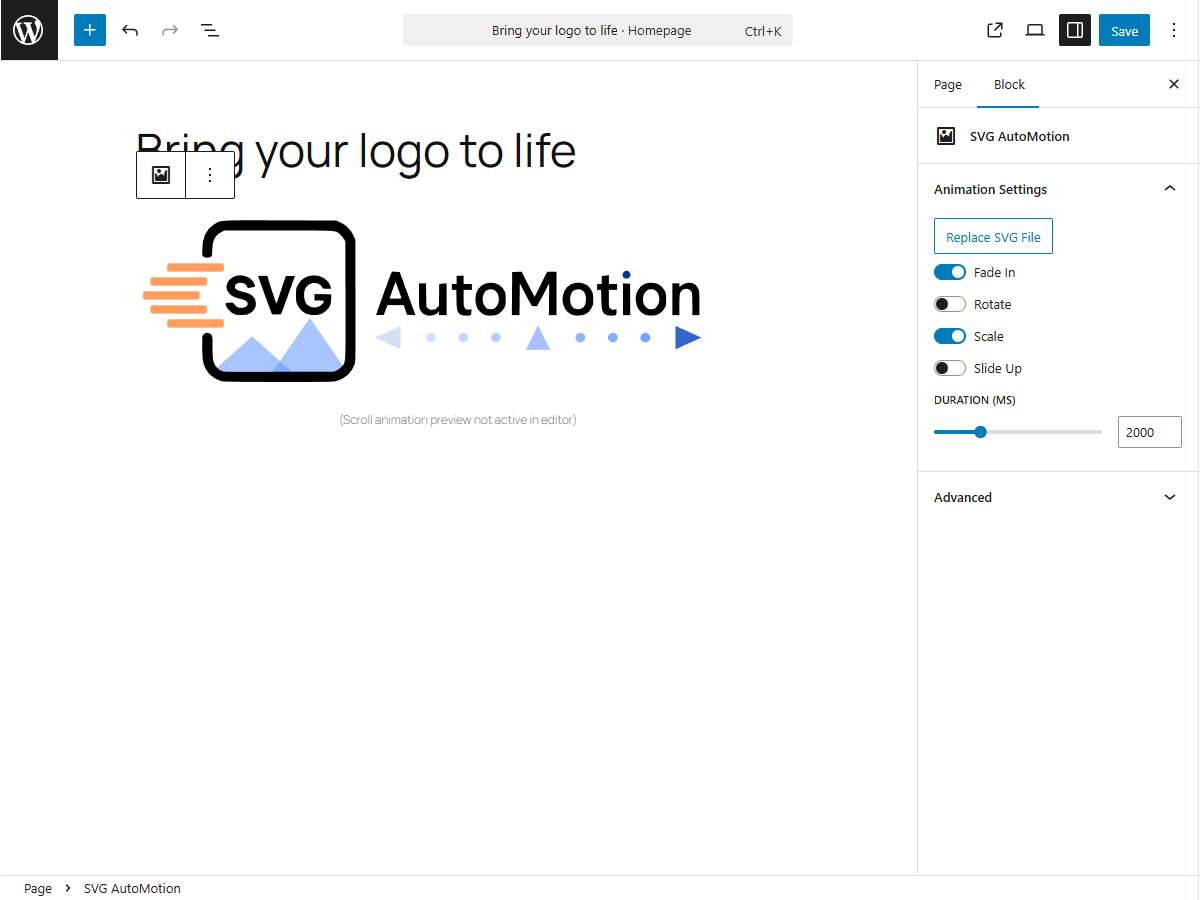
The SVG AutoMotion Settings
Installazione
- Upload the plugin files to the
/wp-content/plugins/svg-automotion/directory, or install through the WordPress plugin screen. - Activate the plugin through the Plugins menu in WordPress.
- Add an SVG AutoMotion block or use the
[svg_automotion]shortcode.
FAQ
-
How do I upload SVG files into my media library?
-
If you haven’t yet, install a plugin that allows SVG uploads such as “SVG Support”.
-
Does it work with any SVG file?
-
Yes, as long as the SVG structure is valid.
-
Can I control which animations run?
-
Yes. You can toggle fade, rotate, scale, and slide animations from the block settings.
-
Will it slow down my site?
-
No. The script is tiny, loads only when needed, and animations trigger only when visible.
-
What sets the order of the animation?
-
The animation applies to image elements in the order they appear in the SVG layers.
Recensioni

Contributi e sviluppo
“SVG AutoMotion” è un software open source. Le persone che hanno contribuito allo sviluppo di questo plugin sono indicate di seguito.
Collaboratori
Traduci “SVG AutoMotion” nella tua lingua.
Ti interessa lo sviluppo?
Esplora il codice segui il repository SVN, segui il log delle modifiche tramite RSS.
Changelog
1.1.0
- Added ability to add a link
- Removed unwanted pause in animation when gradients are defined in the SVG file
1.0.0
- Initial release with Gutenberg block and shortcode support.